
Edit PDF content
Edit text, images, shapes, signatures, links, and fillable form fields in PDFs. The Windows page says PDFgear aims to make PDF editing feel similar to working in Microsoft Word.

PDFgear is a free PDF editor and toolkit for Windows, macOS, iOS, Android, and the web—edit, convert, annotate, sign, and organize PDFs without sign-up.
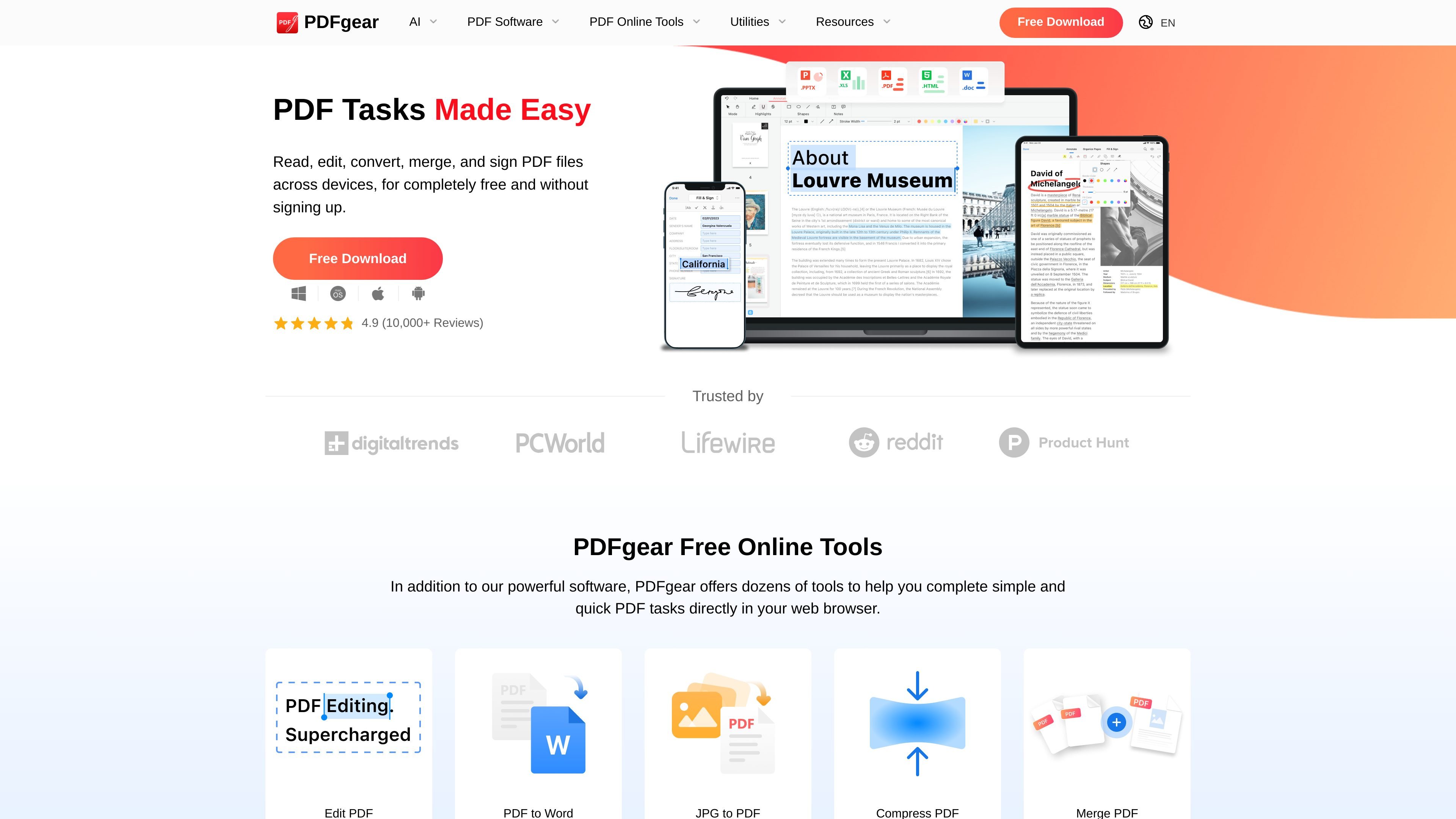
PDFgear is a PDF editor and toolkit that combines desktop apps, browser-based tools, and mobile apps for working with PDF files. The site positions it as free to use and available without signing up, with options to read, edit, convert, merge, sign, annotate, and organize documents.
The product is built for people who need a general-purpose PDF workflow across devices. PDFgear highlights support for Windows, macOS, iOS, and Android, plus online tools for quick tasks such as converting, compressing, splitting, and editing PDFs in a browser.
Edit text, images, shapes, signatures, links, and fillable form fields in PDFs. The Windows page says PDFgear aims to make PDF editing feel similar to working in Microsoft Word.
Highlight, underline, strikethrough, add notes and comments, insert stamps, and use shapes or text boxes to mark up documents.
Convert PDFs to and from Word, TXT, JPG, Excel, PPT, and other formats. PDFgear also describes batch conversion and lossless conversion support.
Extract text from image-based documents or scanned PDFs with OCR. The site says OCR supports 30+ languages and can turn scans into editable Word or TXT files.
Merge, split, add pages, delete pages, rotate, compress, and fill out PDF forms using the desktop and online toolset.
Use AI-assisted PDF workflows such as chat-based summarization and document understanding on supported pages and apps.
Use the desktop app when you need to change text, replace images, fill form fields, or make direct edits that would normally require a more complex PDF workflow.
Use the online tools for quick browser-based work such as compressing a file, splitting pages, merging documents, or converting a PDF without installing software.
Use OCR when you have a scanned document or image-based PDF and need editable text for copying, revising, or converting into Word or TXT.
Use the annotation tools to review reports, add comments, highlight key passages, and leave marks for collaboration or later reference.
Use the signing tools and e-signing options when you need to sign documents or collect signatures electronically from other people.
Yes. The homepage says PDFgear can be used to read, edit, convert, merge, and sign PDF files across devices for free and without signing up. The Windows page also describes it as a full-featured PDF editor for Windows 11/10.
PDFgear says it offers desktop apps for Windows, macOS, iOS, and Android, along with free online tools in the browser.
The product pages describe tools for editing PDF text and objects, annotating, converting between PDF and Word/TXT/JPG/Excel/PPT and more, OCR for scanned PDFs, merging and splitting files, and signing documents.
According to PDFgear’s article on why it is free, most features are intended to remain free, while some advanced options may become paid later. The article says paid options could include AI-driven tools that require cloud computing and special conversion features, but no pricing is published on the page.
PDFgear states that files processed through certain advanced conversion features may be handled on its Amazon Cloud computing server and deleted after processing. The company also says it does not collect personal data and does not display ads.