
One-click deployment
Deploy an OpenClaw AI assistant through a guided flow that starts with channel selection and model selection, then moves to deployment.

CloudClaw deploys an OpenClaw AI assistant to Telegram with a guided setup, model options from Claude, GPT, Gemini, and OpenRouter, and no manual server or SSH setup.
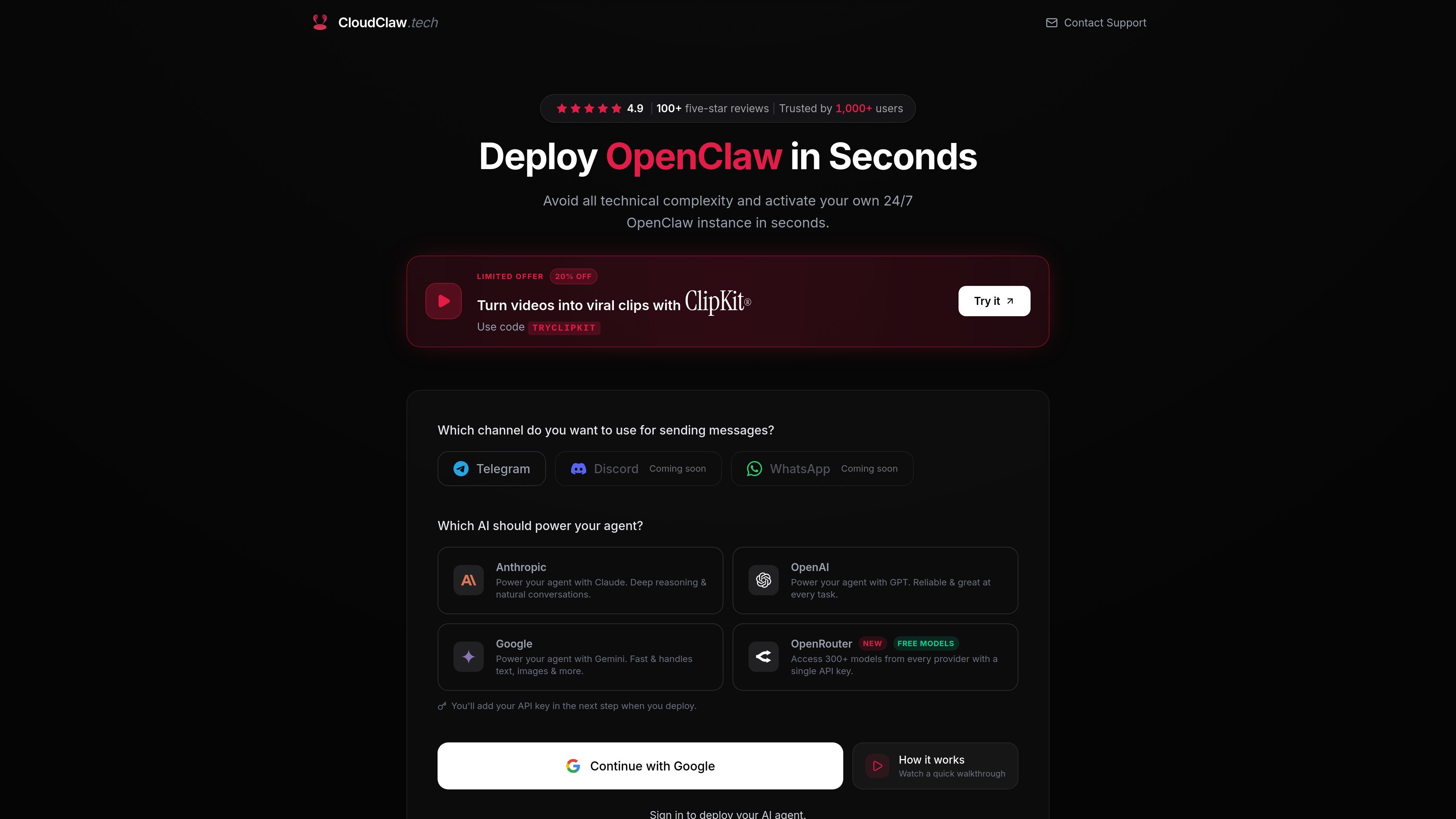
CloudClaw is a deployment service for OpenClaw AI agents, with a workflow centered on launching an assistant to Telegram. The homepage frames it as a way to avoid server setup, SSH, and manual DevOps work while still getting a 24/7 AI assistant running quickly.
The product lets you choose a channel and a model, then deploy the agent through a short guided process. The source specifically names Telegram as the supported channel shown for launch, and lists Claude, GPT, Gemini, and OpenRouter free models as available options.
Deploy an OpenClaw AI assistant through a guided flow that starts with channel selection and model selection, then moves to deployment.
Connect an agent to Telegram, which is the channel shown as ready for deployment on the site.
Choose between Claude, GPT, Gemini, or OpenRouter free models depending on the behavior and model access you want.
Use OpenRouter with a single API key to access 300+ models from different providers, with key entry happening during deployment.
Avoid provisioning a cloud server, generating SSH keys, or configuring an environment manually; the platform sets up the agent environment for you.
Follow a short deployment path that the site describes as taking under 60 seconds in normal use.
Set up a Telegram-based OpenClaw assistant without renting infrastructure or editing server configuration files.
Choose between Anthropic, OpenAI, Google, or OpenRouter-backed models when you want a specific model behavior for the agent.
Use the managed deployment flow when you want to avoid SSH, environment variables, and other manual setup tasks.
Start with a minimal deployment and add your own OpenRouter API key when you want access to a larger model catalog.
CloudClaw is set up to deploy an OpenClaw AI assistant on Telegram. The source also shows Discord and WhatsApp as coming soon, but Telegram is the supported channel shown for deployment.
The page lists Claude from Anthropic, GPT from OpenAI, Gemini from Google, and OpenRouter free models. It says you pick a model during deployment and can add your own OpenRouter API key in the next step.
The product is presented as a one-click deployment flow: choose a channel, pick a model, connect Telegram, and deploy. The site says this can be done in under 60 seconds.
No. The page explicitly says there are no servers, SSH, or DevOps required because the environment is already set up for deployment.
The pricing page returned a 404 in the supplied sources, so the provided evidence does not confirm pricing plans or billing details.
Traffic data is for reference only.
| Apr | 1344 |
|---|---|
| May | 2469 |
| Jun | 939 |