
Silent meeting capture
Kai captures meeting notes, generates summaries, and extracts action items without joining as a visible bot in the room.

Kai is an AI executive assistant for busy calendars, inboxes, meetings, and task follow-through. Connects with Google or Outlook, drafts replies, captures action items, and proposes daily plans.
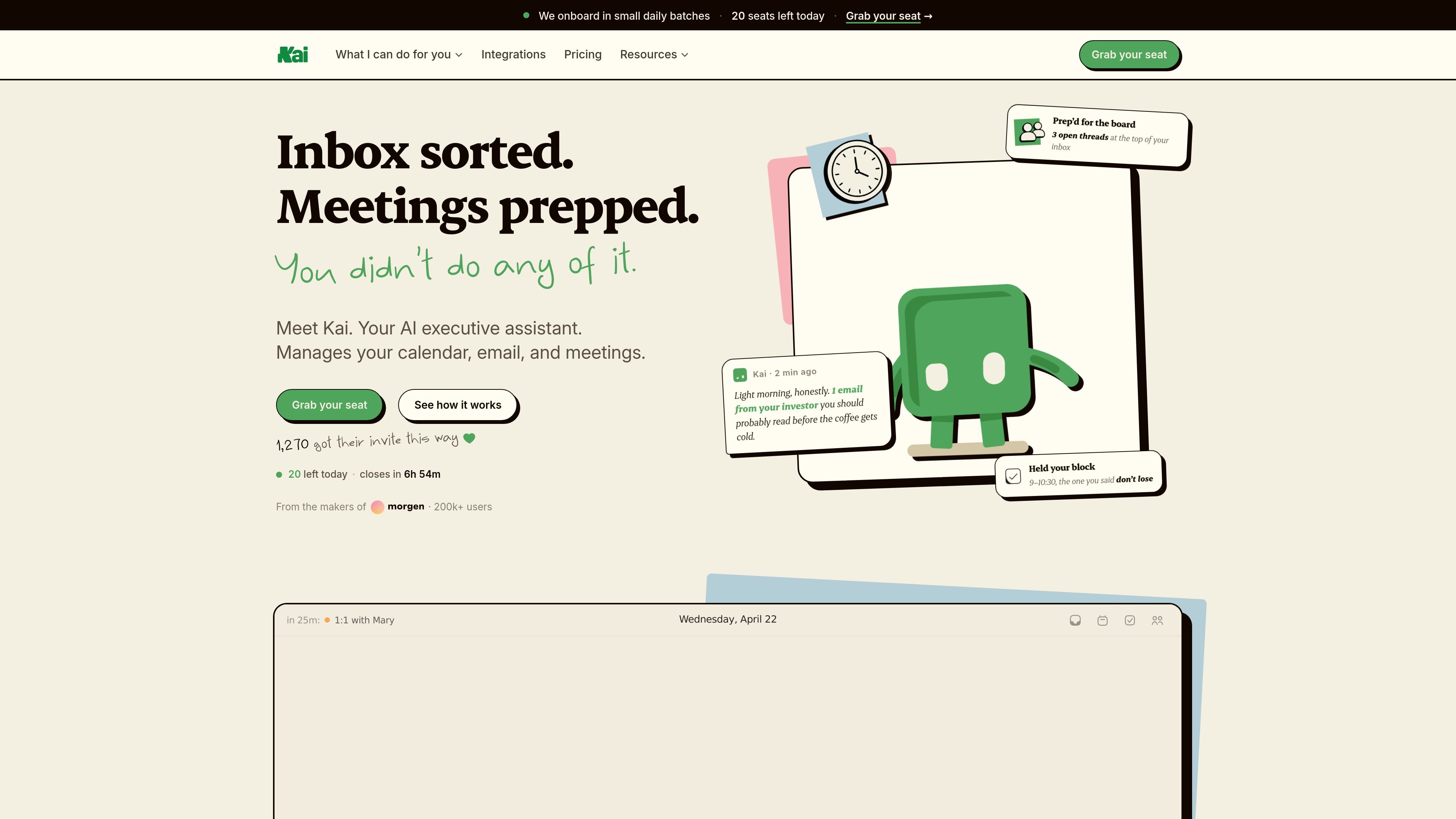
Kai is an AI executive assistant that works across calendar, email, meetings, and task follow-through. The product is positioned as an embedded assistant rather than a general chatbot: it watches for what needs attention, prepares drafts and plans, and lets you approve the final action.
The site presents Kai as a single system for daily planning, inbox triage, and meeting follow-up. It connects to Google or Outlook accounts, reads across your schedule and messages, and helps keep focus time, replies, and action items organized in one workflow.
Kai captures meeting notes, generates summaries, and extracts action items without joining as a visible bot in the room.
Kai reads email threads, groups them by urgency, drafts replies in your voice, and tracks follow-ups that need attention.
Kai turns your calendar, inbox, and priorities into a daily schedule, then adjusts the plan when meetings or tasks move.
Kai protects focus blocks, flags conflicts across connected calendars, and proposes alternative times when something overlaps.
Kai pulls tasks from meetings and email into a triage workflow so action items are not left buried in messages or notes.
Kai supports Google and Outlook calendars and email, with chat access over Slack and WhatsApp and MCP access mentioned on the pricing page.
Use Kai to prepare for the day before work starts. It reads your calendar, inbox, and outstanding tasks, then proposes a realistic plan with focus blocks and priorities already arranged.
Use Kai after meetings to capture what was decided, draft follow-up emails, and turn action items into tasks that can be reviewed and tracked.
Use Kai to sort a busy inbox into categories, draft replies in your voice, and surface the threads that actually need a response.
Use Kai when your schedule changes. It looks for conflicts across connected calendars, protects important focus time, and proposes alternative meeting slots.
Kai is set up by connecting a Google or Outlook account. The site says setup takes about a minute, after which Kai starts surfacing inbox, calendar, and meeting work in a triage workspace for review.
Kai monitors email, attends meetings, and manages calendar work in the background. It triages inbox messages, captures meeting action items, drafts replies, and proposes calendar changes for you to approve, edit, or dismiss.
Yes. The pricing page says Kai is priced the same for teams as for individual users, and every seat gets the full assistant.
Kai is described as an embedded assistant rather than a chatbot. You review suggestions before anything is sent, synced, or moved, so the product is designed around approval rather than fully autonomous execution.
The site shows Kai working with Google and Outlook for calendars and email, with chat access over Slack and WhatsApp, plus MCP access and agent-to-agent coordination mentioned on the pricing page.