
Multiple input paths
Upload a single image, paste from clipboard, use a direct import URL, or take a photo from a mobile device. The pages mention support for JPG, JPEG, PNG, screenshots, and HEIC on the JPG to Excel workflow.

JPG to Excel converts images, screenshots, and scanned tables into editable Excel or CSV files, with review before download, guest use, and batch workflows on paid plans.
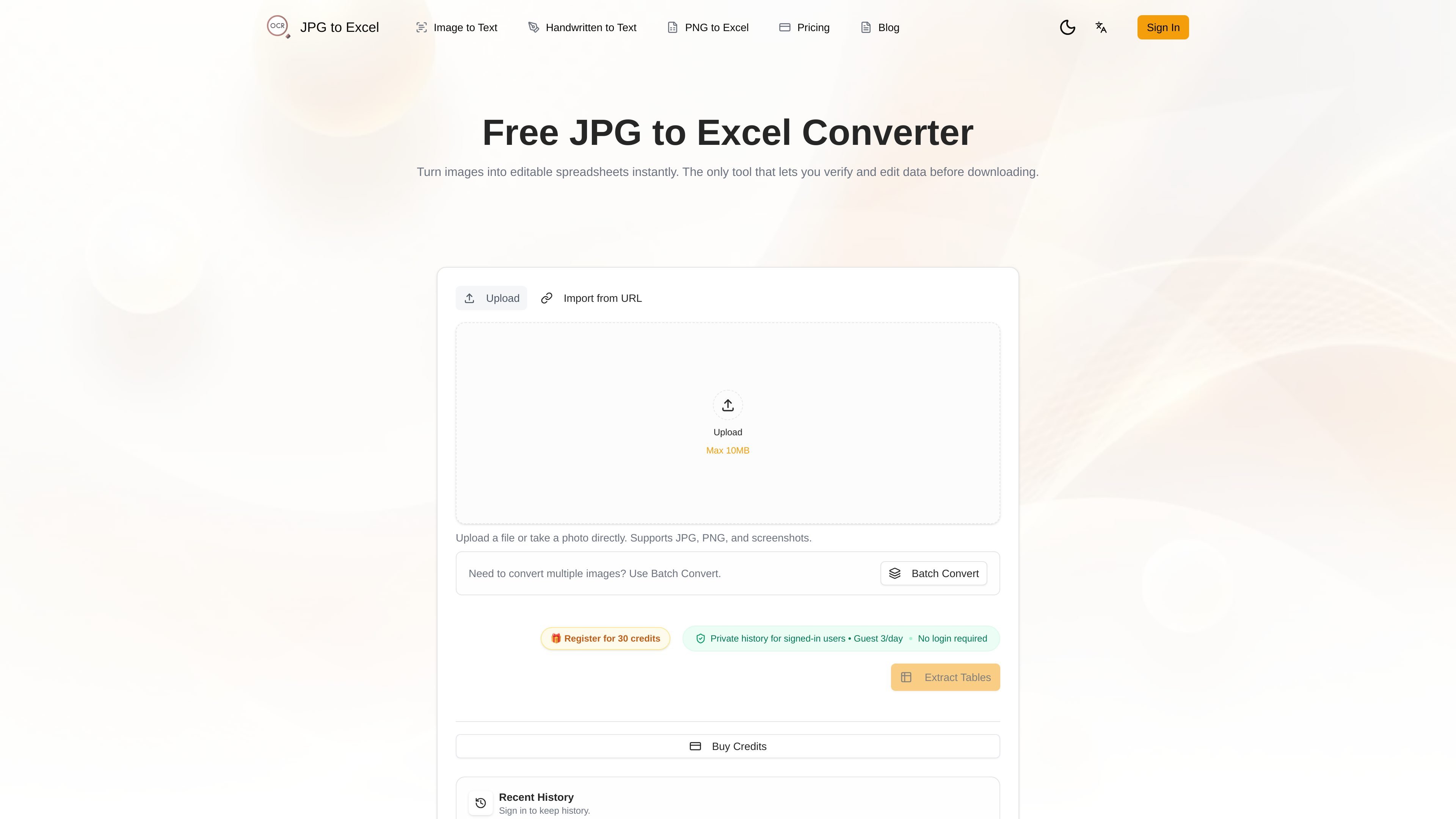
JPG to Excel is a web-based image-to-spreadsheet converter that extracts table data from photos, screenshots, and scanned images into editable Excel or CSV files. The product is built around a review-first workflow, so users can verify and correct extracted cells before downloading.
The site presents the tool as useful when data is trapped inside an image and needs to become a structured spreadsheet. It supports single-image conversion, batch processing on paid plans, and private history for signed-in users, while guest use is available without an account.
Upload a single image, paste from clipboard, use a direct import URL, or take a photo from a mobile device. The pages mention support for JPG, JPEG, PNG, screenshots, and HEIC on the JPG to Excel workflow.
The tool extracts table structure rather than just plain text, then identifies headers, rows, and data types before export. The site positions this as useful for spreadsheets with complex layouts and merged cells.
A split-screen compare view lets you check the source image against the extracted table and correct cells before downloading. This is intended to reduce errors that would be missed by blind OCR export.
The main export formats for JPG to Excel are XLSX and CSV. The workflow is described as compatible with Excel, Google Sheets, and other data analysis tools.
Batch conversion is available on the pricing and bulk pages, including up to 20 images on the Starter Pack after purchase and up to 3 images per batch for registered users in the bulk table tool.
Guest conversions do not require login, and signed-in users can keep private conversion history and delete it later. The site also mentions mobile optimization for camera-based capture.
Turn photographed invoices, receipts, and statements into spreadsheets for reconciliation or analysis, then correct any uncertain cells before export.
Convert screenshots of dashboards, product tables, or exported reports into structured rows and columns when the source system does not offer a CSV export.
Extract tables from paper forms, surveys, and classroom materials so the data can be sorted, filtered, or analyzed in Excel or Google Sheets.
Use batch conversion to process multiple images at once when handling recurring image sets such as monthly reports, inventory sheets, or document folders.
Capture a table with a phone camera on mobile, verify the extracted data in the editor, and download a spreadsheet without returning to a desktop workflow.
It works as a browser-based converter: upload an image, run table extraction, review the result in the split-screen editor, then download the cleaned data as XLSX or CSV. The site also supports batch conversion for multiple images on paid plans, and guest conversions do not require an account.
The site says it supports JPG, JPEG, PNG, screenshots, and HEIC on the JPG to Excel page, and the PNG page also mentions direct image URLs. The copy-text page lists JPG, PNG, and WebP for its OCR workflow, so supported formats vary slightly by tool.
The main JPG to Excel page says you can compare the source image with the extracted table and edit cells before downloading. The PNG to Excel page repeats that side-by-side review and correction are part of the workflow.
Yes, the site says exports are available as Microsoft Excel (.xlsx) and CSV. The copy-text tool also offers DOCX, Markdown, plain text, and PDF for its own workflow, but JPG to Excel itself focuses on spreadsheet outputs.
The site says guest conversions are processed without account history, while signed-in users can keep private conversion history and delete it anytime. The pricing page also says you need to sign in for batch conversion and organized history.
Данные о трафике приведены только для справки.
| май | 0 |
|---|---|
| июнь | 0 |
| июль | 67 |
Аналитика трафика пока недоступна.
Аналитика трафика пока недоступна.