
Keyboard-first navigation
Move through the calendar with shortcuts for next and previous week, day view, life view, and jump actions without relying on repeated tabbing.

Compass Calendar is a keyboard-first weekly planning calendar for people who prefer working from the keyboard. It helps users build schedules, manage events, and navigate the calendar with shortcuts instead of mouse-heavy workflows.
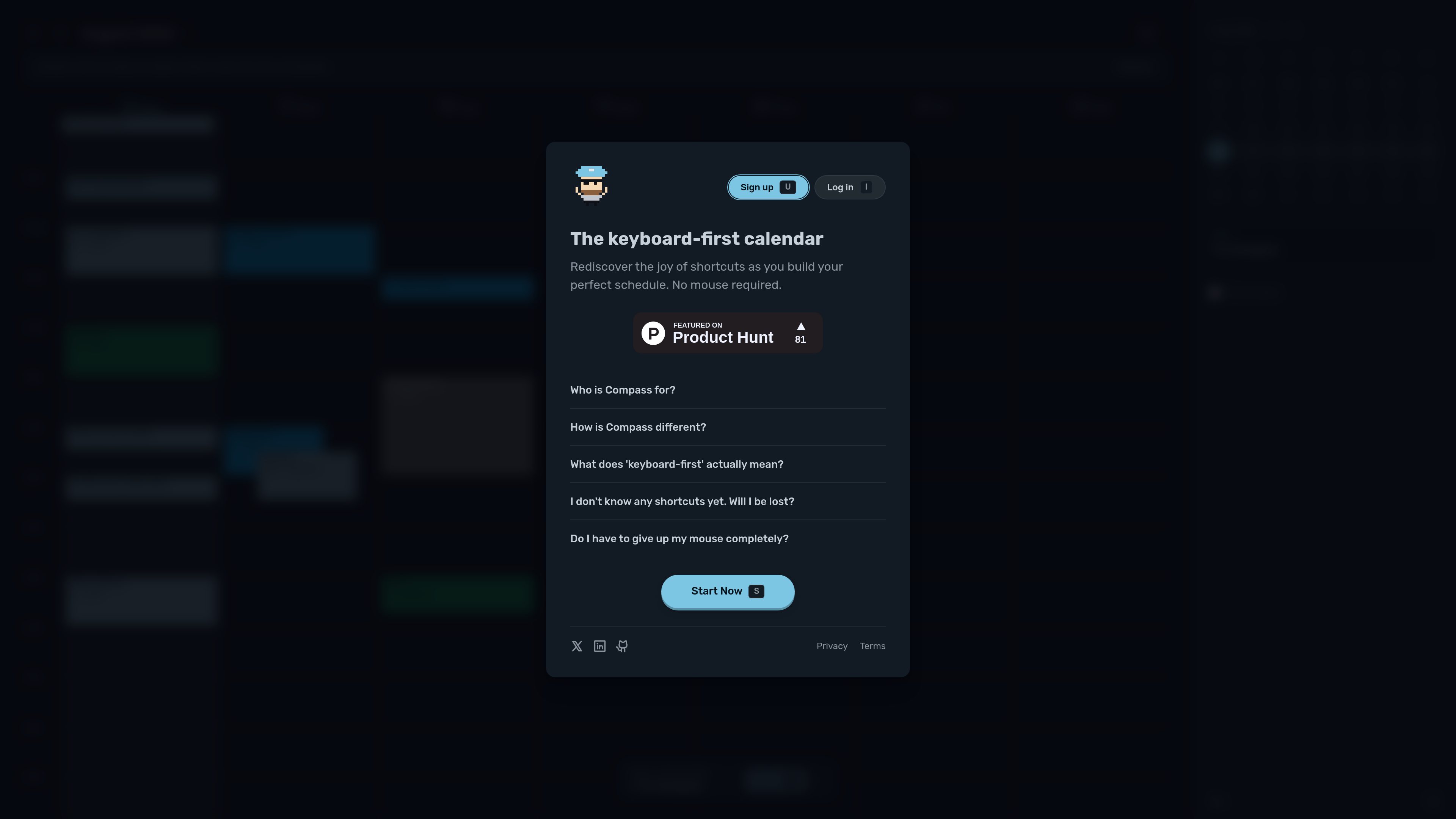
Compass Calendar is a browser-based calendar focused on keyboard-first weekly planning. The homepage positions it as a tool for busy professionals and minimalists who want to plan their week around what matters, with an interface built around shortcuts, command-palette actions, and quick navigation.
The product emphasizes speed and reduced mouse use rather than a broad set of advanced scheduling features. Sample events on the homepage show common planning scenarios such as exercise, calls, design review, focus blocks, meetings, and daily planning. The site also presents a week view, shortcuts for moving between days and weeks, and commands for creating, editing, duplicating, and deleting events.
Move through the calendar with shortcuts for next and previous week, day view, life view, and jump actions without relying on repeated tabbing.
Open a command palette to find actions, settings, and commands you may not remember, which supports faster interaction than hunting through menus.
Create timed events or all-day events from the keyboard, and place a timed draft directly on the calendar grid.
Edit key event fields such as title, location, description, start time, end time, recurrence, account, and color from focused event commands.
The interface surfaces relevant shortcuts at the right moment and offers smart recommendations that teach commands gradually.
Users can enable a mode that blocks mouse clicks so keyboard shortcuts become the primary way to interact with the calendar.
People who keep a packed calendar can sketch out a week of meetings, focus time, errands, and personal commitments in one place.
Users who already prefer shortcuts can stay in flow while navigating days, creating events, and editing details without switching to mouse input.
Someone new to keyboard-heavy tools can use the built-in recommendations and surfaced shortcut hints to learn commands gradually.
Users can block out deep work sessions, design reviews, or other uninterrupted periods and move them around quickly as plans change.
When meetings shift, users can duplicate, edit, or move events using shortcut-driven commands instead of drag-heavy workflows.
No. The site says every shortcut has a mouse equivalent, so you can mix mouse and keyboard interaction.
No. The homepage says smart recommendations teach shortcuts as you go, one at a time, when they are useful.
Hardcore Mode is an opt-in setting that blocks mouse clicks so users can commit to keyboard-only interaction while learning shortcuts.
The pricing page says Compass is currently free, and that a trial starts in late August with pricing to be determined based on early feedback.
The homepage describes it as being for busy professionals who live at their keyboard.
Os dados de tráfego são apenas para referência.
| mai. | 435 |
|---|---|
| jun. | 74 |
| jul. | 183 |
As análises de tráfego ainda não estão disponíveis.
As análises de tráfego ainda não estão disponíveis.