
Noise Removal
Reduces unwanted background sounds such as keyboard typing, noisy environments, and PC fans in the microphone feed.

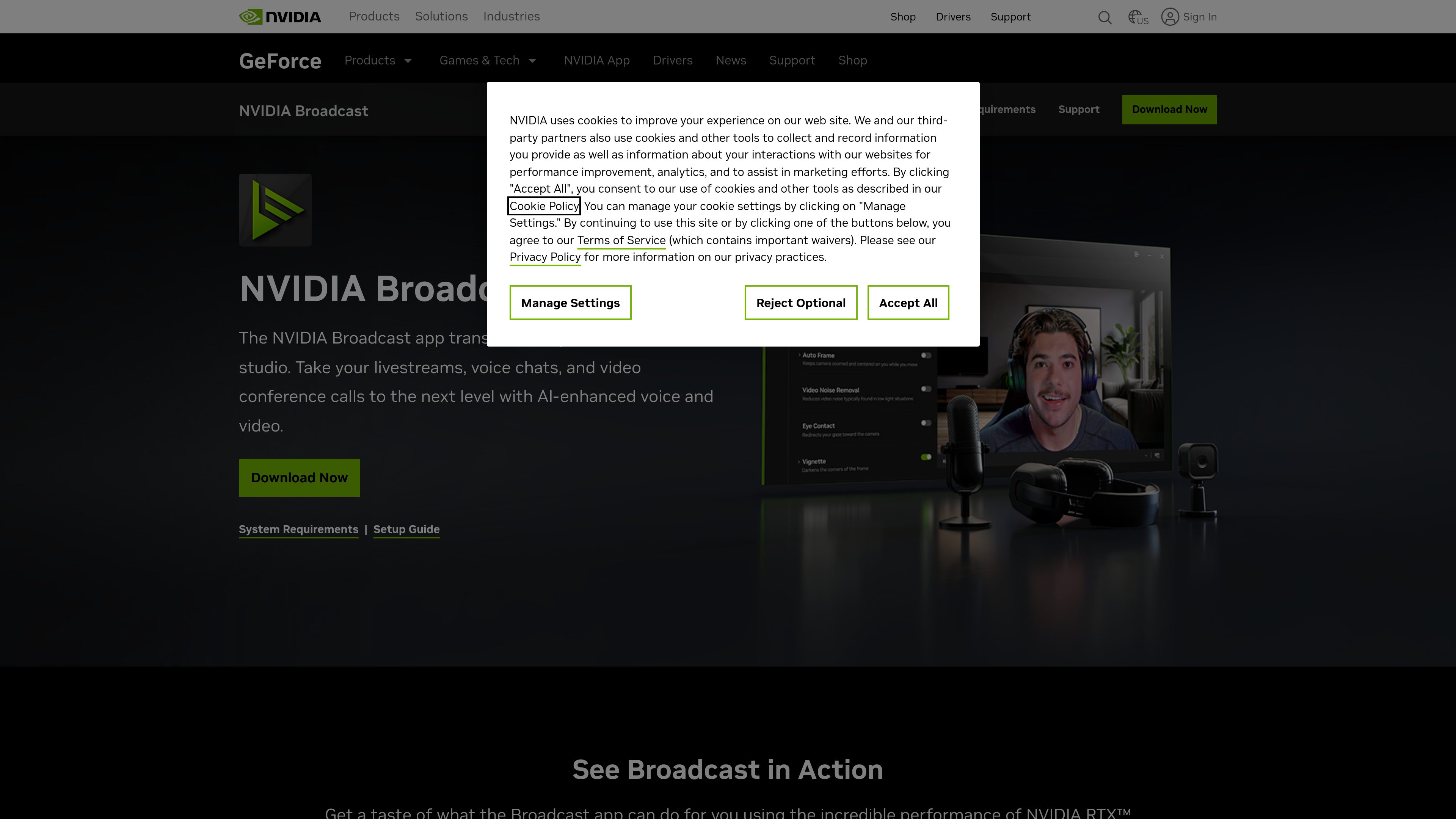
NVIDIA Broadcast is a Windows app that uses AI to enhance microphone audio and webcam video for livestreams, voice chats, video conferences, and remote work. It provides selectable audio and video effects, with NVIDIA Broadcast chosen as the camera and microphone in a supported app.
NVIDIA Broadcast is a Windows desktop app for improving microphone audio and webcam video in livestreams, voice chats, video conferences, and remote-work calls. It applies selectable AI-enhanced effects before the processed camera and microphone feeds are used in another application.
The app combines audio cleanup with camera effects: it can target unwanted noise and room echo, alter or blur the background, keep the subject centered, reduce visual noise in low-light video, and provide an Eye Contact beta effect. Users download the app, select their devices and effects, then choose NVIDIA Broadcast as the camera and microphone in their conferencing or streaming application.
Reduces unwanted background sounds such as keyboard typing, noisy environments, and PC fans in the microphone feed.
Uses AI processing to reduce room echo, helping make speech clearer in spaces without dedicated acoustic treatment.
Replaces the webcam background or applies blur to present a less distracting setting during calls and broadcasts.
Dynamically crops and zooms the video to keep the subject centered while they move around the workspace.
Reduces visual noise in webcam footage captured in low-light conditions for a clearer picture.
Uses AI to reposition the appearance of the eyes toward the camera when the user is reading notes during a video conference.
Streamers can route the processed microphone and camera feeds into their broadcast workflow, reducing distracting room noise and shaping the visible background.
Meeting participants can use background controls, Auto Frame, and audio cleanup to maintain a consistent presentation while working from a home office or other shared space.
Users can apply Noise Removal and Room Echo Removal when speaking from environments where keyboard sounds, fans, or room reflections might otherwise be audible.
For video calls that require reference material, the Eye Contact beta effect is intended to make the user's gaze appear more camera-facing while they read.
People using webcams in dim rooms can apply Video Noise Removal to reduce visible image noise before sending the video to their call application.
Download and open NVIDIA Broadcast, choose the input device and effects, then select NVIDIA Broadcast as the camera and microphone in the conferencing or streaming app.
The documented audio effects are Noise Removal and Room Echo Removal. They are intended to reduce sounds such as keyboard typing, noisy surroundings, PC fans, and room echo.
The documented video effects include Background Replacement, background blur, Auto Frame, Video Noise Removal, and Eye Contact, which is identified as a beta effect.
NVIDIA says the app works with favorite video-conference apps, but the supplied product material does not include a complete named compatibility list. Check NVIDIA's current setup or support documentation for the application you plan to use.
An NVIDIA requirements page lists Windows 10 64-bit or Windows 11, at least 8 GB of RAM, and compatible NVIDIA RTX hardware, along with specific driver and installation requirements. The current product page identifies version 2.2.0, so users should verify the latest requirements before installation.

hitpaw.com
HitPaw offers AI tools to enhance, restore, and convert video, photo, and audio content.

www.waves.com
Clarity Vx is an AI-powered audio plugin for removing background noise from vocals and voice recordings. It is designed for music, podcast, production, and video workflows where clean speech or singing is needed before mixing.

xound.io
AI audio enhancement that removes noise and clarifies voices

audioenhancer.ai
Web-based AI tool for cleaning audio and video with speech, noise, loudness, and echo processing.

www.aiarty.com
Aiarty Video Enhancer is a desktop AI tool for denoising, deblurring, upscaling, restoring, and refining video footage. It is designed for content creators, videographers, and other users working with low-quality, noisy, blurry, or aging video.

unifab.ai
AI-powered video and audio enhancement for upscaling, denoising, colorizing, and conversion.