
Plain-English task execution
Users can tell Sidekick what to do in ordinary language instead of navigating each app manually. The site shows prompts such as sorting the Desktop, closing tabs, or summarising a contract.

Sidekick is an AI agent for Mac that acts across apps, files, and system tasks using plain-English prompts. It is in free beta, with usage-based payment after the free start.
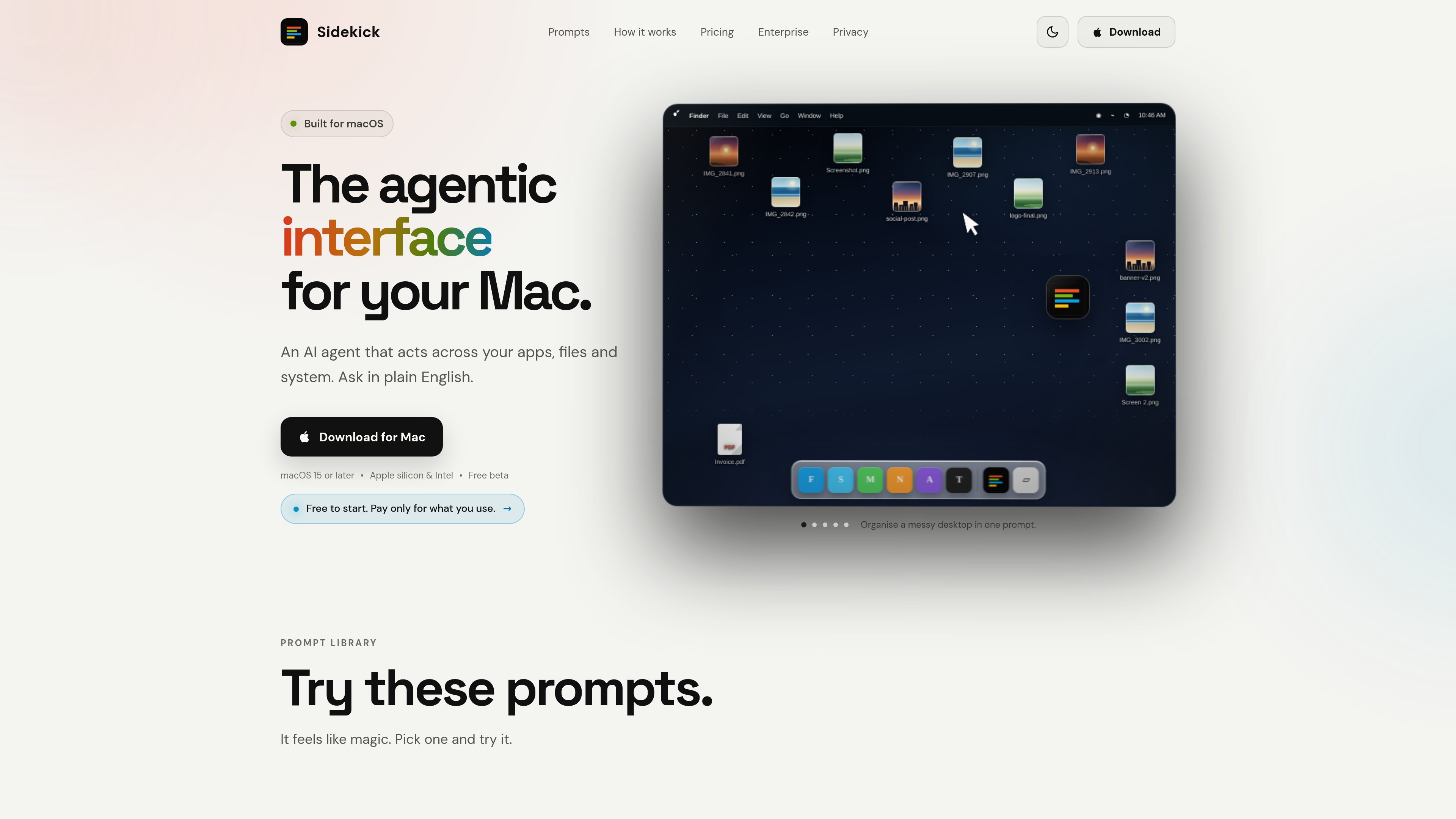
Sidekick is an AI agent for macOS that performs tasks across apps, files, and system functions from plain-English instructions. It is presented as an “agentic interface” for the Mac, with a desktop bubble and keyboard shortcut as the main ways to open it.
The homepage examples show it handling file organization, browser cleanup, calendar scheduling, file search, media conversion, PDF merging, system checks, and troubleshooting tasks such as rebuilding Spotlight. The product is built to act in place on the Mac, with permission controls and undo support for actions it performs.
Users can tell Sidekick what to do in ordinary language instead of navigating each app manually. The site shows prompts such as sorting the Desktop, closing tabs, or summarising a contract.
Sidekick is described as acting across apps, files, and the system, rather than staying inside one single workflow. Examples include Finder, Calendar, Chrome, Teams, Messages, PDF handling, and system information.
The homepage shows file discovery and organization workflows such as finding a deck by description, moving PNG files into Images, renaming photos by what they contain, and sorting files by project or date.
Sidekick can merge PDFs, convert MOV files to MP4, shrink large clips, resize photos, and extract audio without sending users to a separate conversion site according to the site copy.
The product states that it only acts when asked, shows sensitive actions for review first, and keeps secure fields off limits. It also presents an undo option after completing a task.
Sidekick can be opened from a floating bubble on the desktop or with Option+Space, letting users start a task from wherever they are on the Mac.
A user can ask Sidekick to sort desktop files into folders by project, date, or file type when they do not want to manage each item manually.
The site shows Sidekick closing distraction tabs, preparing Teams meeting invitations, and sending the invite, which fits small admin tasks that span browser and calendar apps.
Users can describe a file instead of remembering its exact name or folder, then have Sidekick open it or rename batches of files based on their contents.
Sidekick is shown merging PDFs, converting video files, and resizing or extracting assets in place, which suits people working through repeated file-processing tasks.
It can surface system details or rebuild Spotlight when search is not working, which makes it useful for basic Mac maintenance and support-style tasks.
Sidekick is an AI agent for Mac that takes plain-English instructions and carries out actions across apps, files, and system tasks.
The homepage shows two entry points: a desktop bubble and the Option+Space keyboard shortcut.
Examples on the site include organizing files, closing browser tabs, scheduling meetings, finding files, renaming items, converting media, merging PDFs, checking system information, and repairing Spotlight search.
The site states that Sidekick is for macOS 15 or later and supports both Apple silicon and Intel Macs.
The homepage says the app is free to start in beta and that you only pay for what you use; no subscription is shown on the source pages reviewed.