
Two-sided recording on Mac
MeetingMemo records your microphone and the system audio at the same time, so the transcript captures both sides of the conversation without extra audio-routing tools.

MeetingMemo is a private Mac meeting recorder that captures calls locally, transcribes on-device, and creates summaries with Ollama or your own AI key.
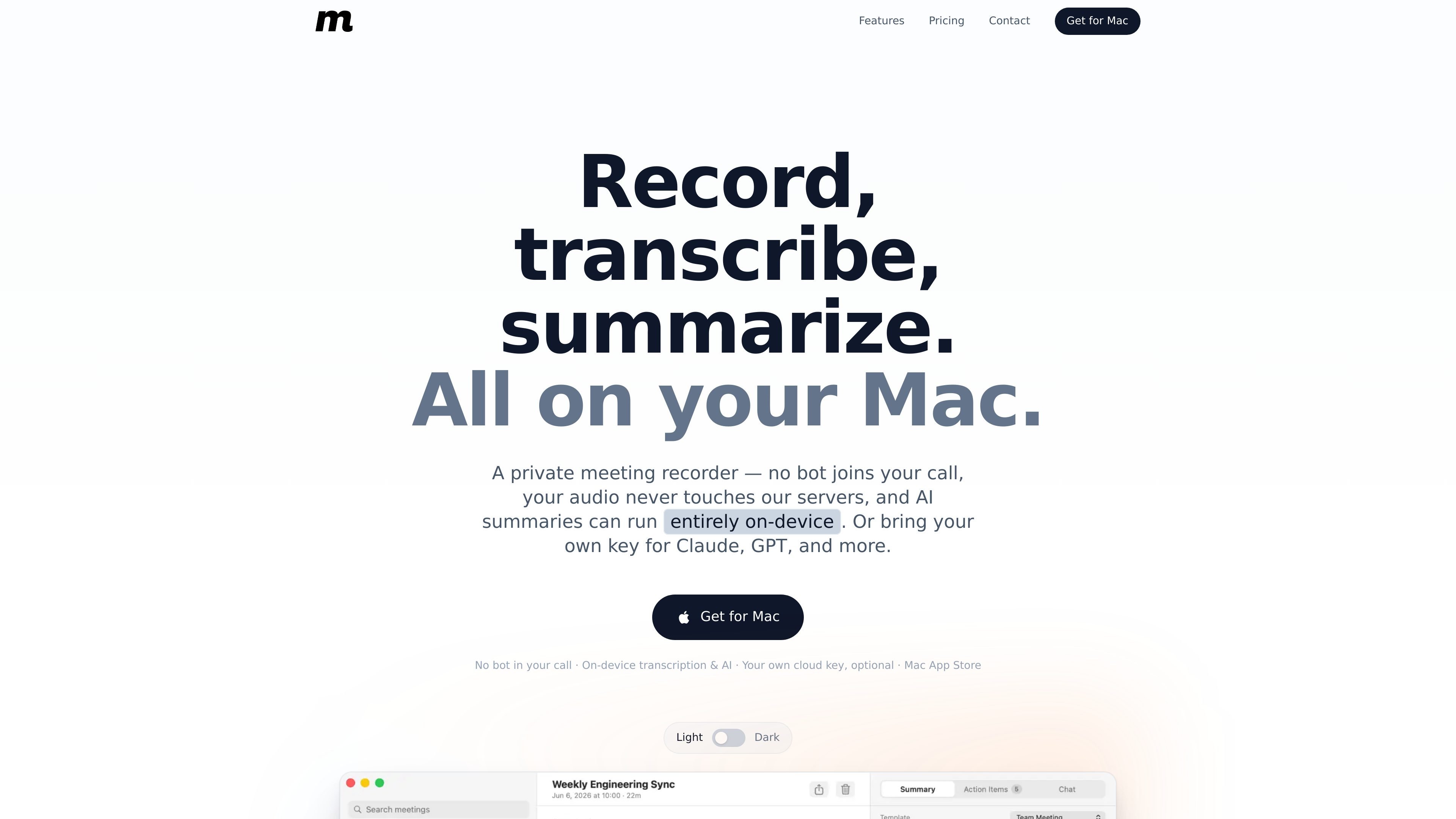
MeetingMemo is a native Mac meeting recorder that captures your microphone and system audio, transcribes the conversation on-device, and generates summaries and action items without sending meeting content to a MeetingMemo server. It is designed for people who want a local workflow for calls, notes, and follow-up.
The app works with common Mac meeting setups such as Zoom, Teams, Google Meet, and FaceTime, and it can also capture audio from a phone call played on speaker. AI features are optional: you can keep everything local with Ollama, or use your own cloud AI key when you want a stronger model.
MeetingMemo is distributed through the Mac App Store and includes a 30-day free trial before the $29/year subscription noted in the privacy policy. The product emphasizes local storage, optional iCloud sync, and a workflow that keeps recording under the user’s control.
MeetingMemo records your microphone and the system audio at the same time, so the transcript captures both sides of the conversation without extra audio-routing tools.
Transcription runs locally using Apple SpeechTranscriber or WhisperKit on the Neural Engine, so the audio is not uploaded for transcription.
You can run AI summaries and action items locally with Ollama, or connect your own cloud key for providers such as Anthropic, OpenAI, and Gemini.
The app creates meeting titles, summaries, and action items, and it supports chat against a single meeting transcript.
MeetingMemo reads your calendar to name meetings, link recordings, and prompt you before a scheduled call, but it does not start recording automatically.
Meetings, transcripts, action items, chat, and audio can sync across your Macs through your private iCloud, while still working fully offline.
Use MeetingMemo when you want a private recorder for client or internal calls and do not want to invite a bot participant or upload audio to a vendor cloud.
Use it for day-to-day meetings where you want a live transcript, a concise summary, and action items to review after the call ends.
Use it if you move between several Macs and want meeting notes, transcripts, audio, and chats to stay in sync through your own iCloud account.
Use it when you need meetings to stay local for compliance-sensitive work and prefer on-device transcription and on-device AI with Ollama.
Use it for calendar-driven meetings where you want the app to recognize upcoming events, label recordings, and ask for permission before recording starts.
Yes. MeetingMemo captures your microphone and the Mac’s system audio together at the system level, so it can record both sides of calls in apps such as Zoom, Teams, and Google Meet. It does not require you to be the host, and it does not rely on a virtual audio driver like BlackHole or Loopback.
No. MeetingMemo records what your Mac hears instead of sending a bot into the meeting, so no extra participant appears and nobody gets a notification.
Recording and transcription work entirely on your Mac and can run offline. AI summaries can also run locally through Ollama; if you choose cloud AI, only the text transcript is sent to the provider you selected.
No. MeetingMemo says it does not receive your audio or transcripts, so there is nothing for it to use for training. If you use cloud AI, the transcript is handled under the provider’s own terms.
Not necessarily. AI summaries, action items, and chat can run on-device with the free Ollama app, or you can connect your own cloud AI key for providers such as OpenAI, Anthropic, and Gemini.