
Local browser processing
Compression runs inside the browser rather than on a remote server, which keeps the file on the device during processing.

VdoCipher Video Compressor is a browser-based tool that reduces video file size locally on your device. It supports MP4, MOV, MKV, and WebM input files and is designed for use without upload or signup.
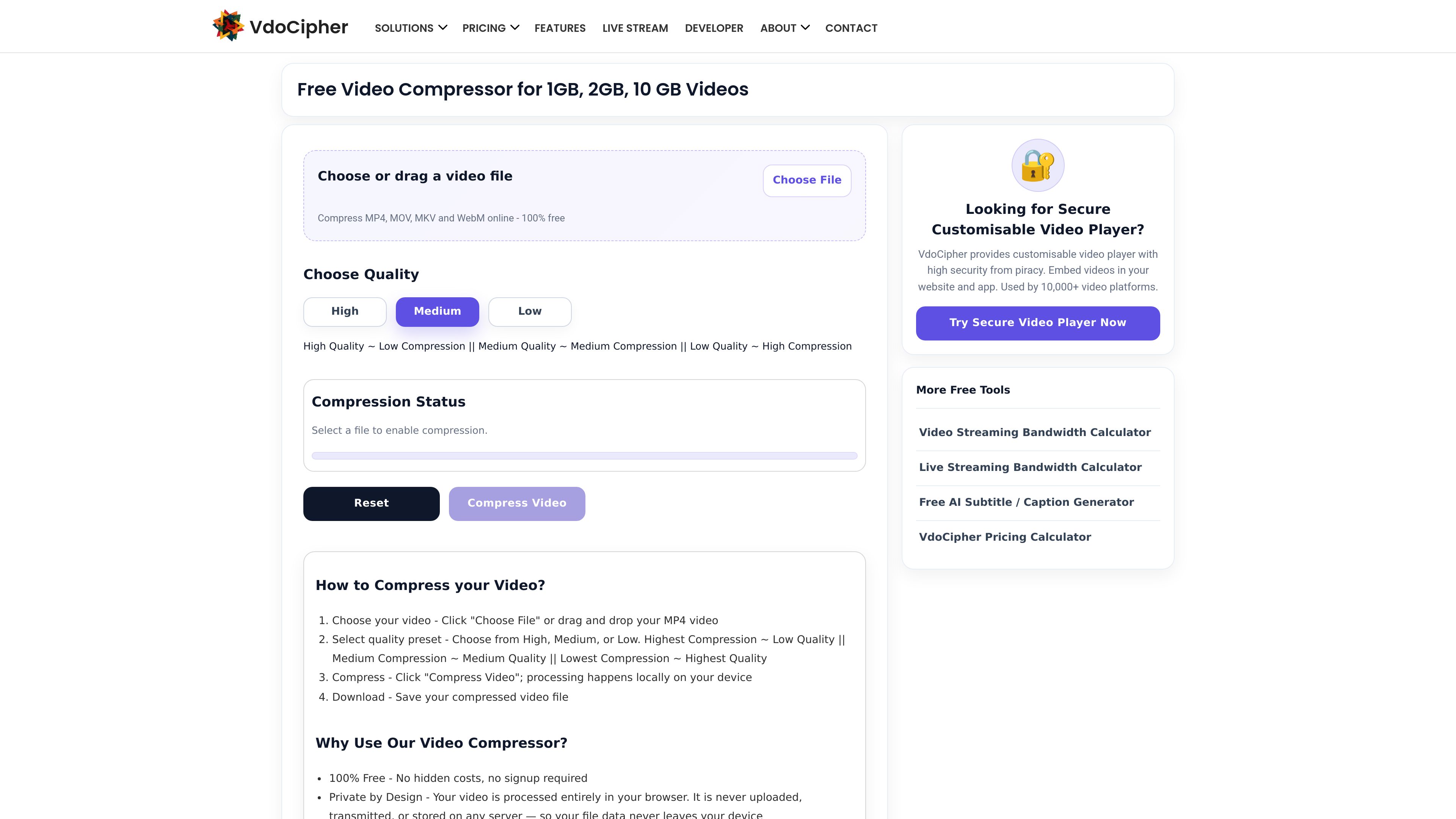
VdoCipher Video Compressor is a free online tool for reducing video file size directly in the browser. It processes the video locally on the user’s device, so the file does not need to be uploaded to a server.
The tool is designed for quick compression of common video formats, including MP4, MOV, MKV, and WebM. Users choose a quality preset, start compression, and then download the compressed MP4 result. The page also states that the workflow works without signup and can continue offline after the page has loaded.
Compression runs inside the browser rather than on a remote server, which keeps the file on the device during processing.
Users can choose High, Medium, or Low compression settings to balance file size and output quality.
The page says it can compress MP4, MOV, MKV, and WebM files, with MP4 (H.264) as the output format for compatibility.
Because the tool processes files locally, there is no server upload step or queue before compression begins.
Once the page is loaded, the tool can work without an internet connection.
The page says it uses the device’s built-in video encoder for faster, more efficient compression.
Useful when someone needs to make a file smaller for storage, sharing, or transfer without installing desktop software.
Fits users working with MP4 or MOV clips from phones and cameras who want a simpler browser workflow.
Helps create a smaller MP4 that can be reused in another workflow that prefers lighter files.
Appropriate when the user wants local processing and does not want the video sent to a server.
Works well for users on recent Chromium-based browsers or Safari 16.4+ who want an in-browser option.
It runs entirely in the browser. You choose a file, select a quality preset, click Compress Video, and then download the compressed result.
No. The page says the file stays on your device and is not uploaded, stored, or transmitted to a server.
The page says it can compress MP4, MOV, MKV, and WebM files.
The output is MP4 (H.264) for compatibility.
The page says recent Chrome, Edge, or other Chromium-based browsers work best, and Safari 16.4+ on Mac and iOS is also supported, with audio support depending on OS version.