
AI-generated animations and effects
Describe an animation or effect and let Jitter AI generate editable motion, effects, and variations that you can refine further.

Jitter is a browser-based motion design tool for animations with templates, AI generation, and manual controls. Create motion graphics and export for any channel.
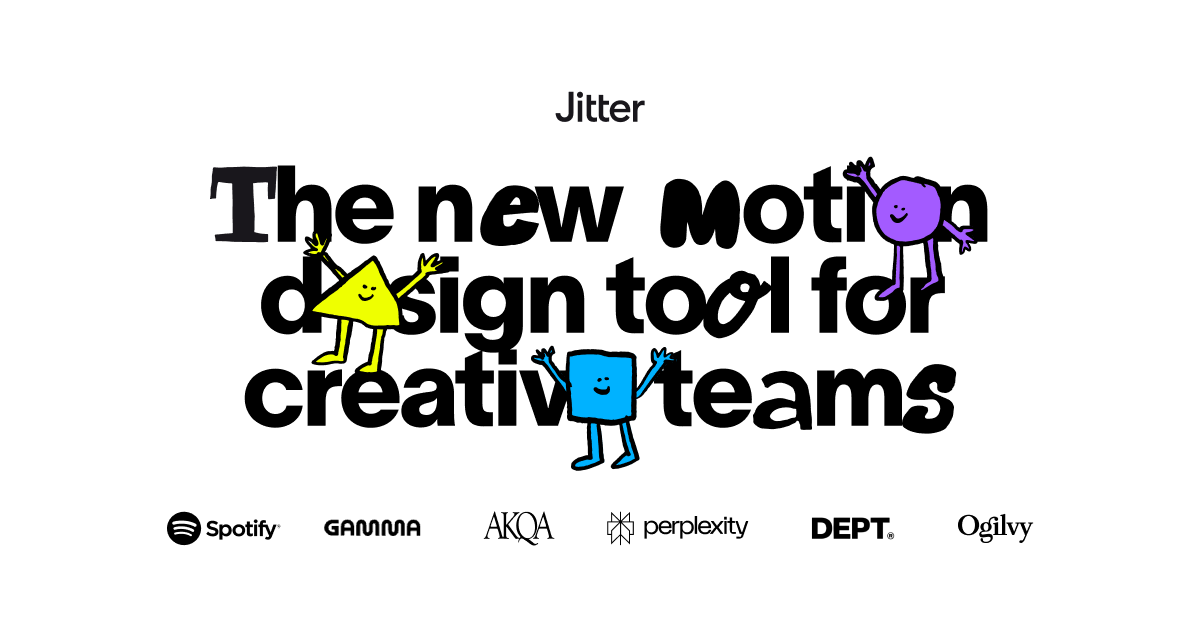
Jitter is a collaborative motion design tool for creating animations in the browser. The product positions itself as a fast way for creative teams, designers, and freelancers to produce polished motion work without starting from a blank canvas every time.
The site emphasizes a mix of templates, AI-assisted generation, and manual control. Users can start from motion graphics templates, prompt Jitter AI to generate editable effects or variations, and then refine the result using controls for paths, morphing, gradients, blur, blend modes, and media layers.
The pricing page shows a Free plan alongside Pro, Max, Ultra, and Enterprise options. Paid plans add higher-resolution export, extra file formats, collaboration features, team libraries, security and account management options, and AI credits for higher-volume motion work.
Jitter also presents a template library with more than 300 motion graphics templates and customer stories that show usage across design, brand, and marketing workflows. The product is aimed at teams that need to create and ship many animations, not just one-off clips.
Describe an animation or effect and let Jitter AI generate editable motion, effects, and variations that you can refine further.
Work from a familiar interface with presets, templates, and one-click access to effects so you can start designing without building every motion from scratch.
Adjust AI-generated results or build motion manually using controls for parameters, curved paths, morphing vector shapes, gradients, blur, blend modes, and audio or video layers.
Keep projects organized and feedback centralized in a shared workspace with real-time collaboration, comments, and team-oriented workflow support.
Create many versions efficiently with Magic Import, automatic resizing and translation, animated components, and batch export for video, GIF, Lottie, and other formats.
Generate motion from static assets with Image → Video and use AI workflows to explore variations, add depth, and adapt content for different channels.
Start with a prompt, template, or preset to create an editable animation quickly, then refine the motion with manual controls until it matches the project’s needs.
Use shared workspaces, comments, and team plans to coordinate motion design across editors and keep everyone working from the latest version.
Create many variations from a single design with Magic Import, auto-resize, auto-translate, and batch export for different channels or languages.
Turn static images into moving assets with Image → Video and layer on effects such as blur, gradients, blend modes, and animated components for social posts, promos, or product visuals.
Browse the template library to customize motion graphics for videos, social content, websites, portfolios, and presentations without building every effect from scratch.
Yes. The Free plan is available indefinitely, and the pricing page says you can use Jitter for free before upgrading.
Paid plans are meant to remove the watermark, unlock unlimited files and folders, increase export quality and formats, and add collaboration features. Pro is positioned for individuals and freelancers, Max for larger teams, and Enterprise for organizations that need SSO, advanced security, and custom support.
According to the pricing page, Pro and Max are workspace-based subscriptions. Monthly billing is charged based on the number of editors in the workspace, while yearly billing is charged for the year based on the current number of editors.
The templates page says the templates are free to use, customizable in a few clicks, and suitable for commercial projects.
You can export animations to video, GIF, and Lottie on the Free plan, while paid plans add formats such as ProRes and WebM and higher-resolution export options.