
Camera and image-based search
Start from something in front of you or an existing image. Lens can return information about plants, animals, artwork and landmarks when you do not know what to type into a search box.

Google Lens turns a camera view, photo or screenshot into visual search results, with tools for finding similar items, translating text and copying words from images.
Google Lens searches from what you can see instead of relying on a typed description. Use a camera view, photo or screenshot to find visually similar products, identify plants or animals, look up landmarks, or work with text in an image.
Lens is available as an Android app and through the Google app, with a separate search workflow in Chrome on a computer. The available features vary by language, region and device; some require an internet connection. In Chrome, Google must be the default search engine for the documented Lens workflow.
Start from something in front of you or an existing image. Lens can return information about plants, animals, artwork and landmarks when you do not know what to type into a search box.
Use a photo or screenshot to look for clothing, furniture or decor. Add text to refine a visual search toward a different color, pattern or size; shopping-result availability varies by country.
Point the camera at a menu, sign or handwriting to translate text in over 100 languages, or copy words from an image to your phone or computer.
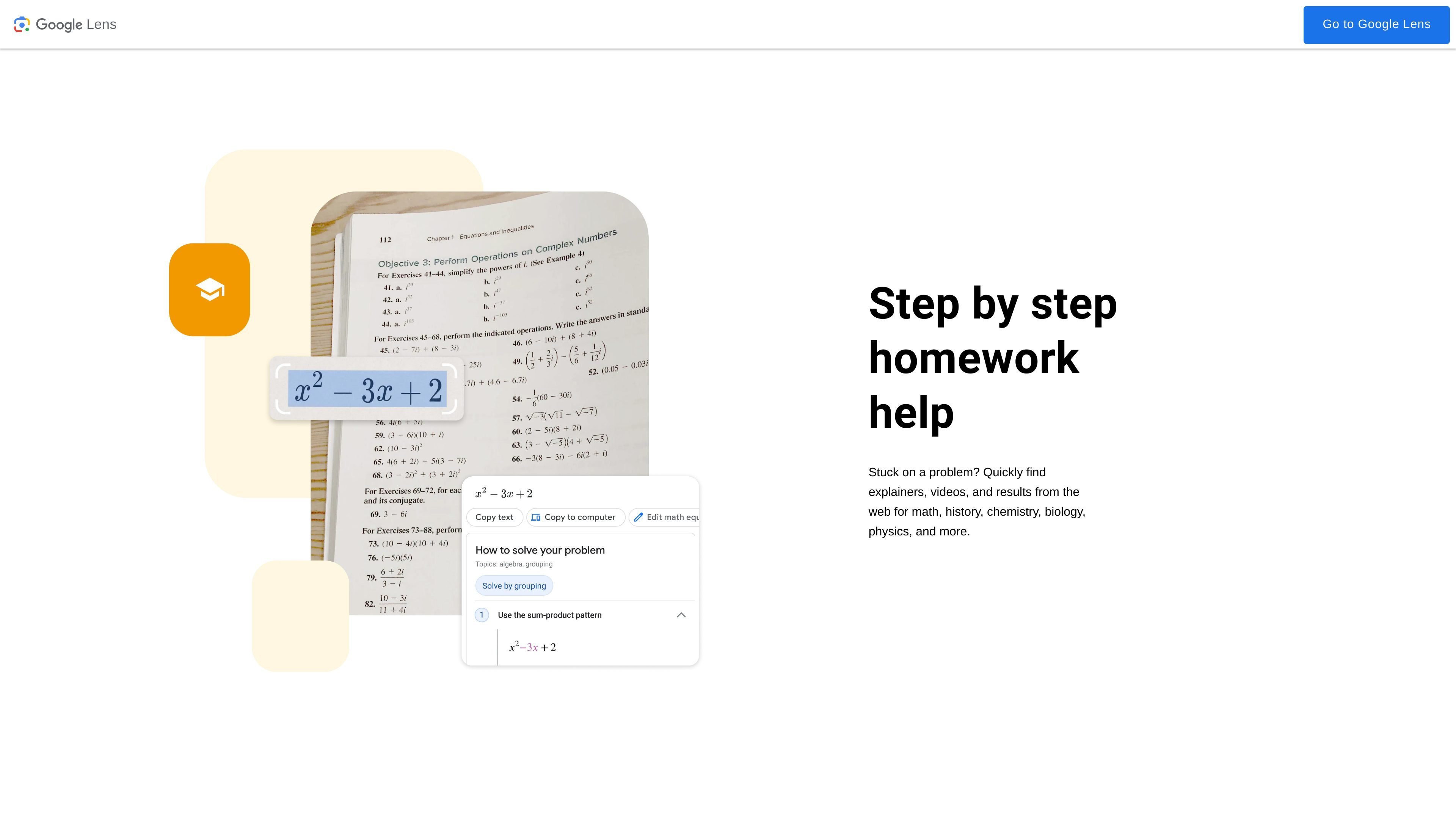
Search a homework problem to find explainers, videos and web results for subjects such as mathematics, history, chemistry, biology and physics.
In Chrome on a computer, choose Search this tab with Google Lens, then select an image, text or an area of the page. Results open in a side panel; opening a result can take you to a new tab.
Search a photo of a chair, outfit or decoration, then refine the results with a color, pattern or size instead of trying to describe the whole object.
Translate a menu or sign while traveling, or copy a paragraph or code from an image instead of retyping it.
Use the image of a problem to locate related explanations and videos, then read the resulting material as part of working through the subject.
Select an object or text in the current Chrome tab and inspect its search results in the side panel while keeping the original page in view.
Google Lens has an Android app and is available in the Google app. On a computer, Chrome includes Search this tab with Google Lens. Some Android devices also include Lens in their camera app; features are not available in every language or region.
Yes. Lens supports images and screenshots as well as a camera view. In Chrome, you can right-click an image and choose Search with Google Lens.
Set Google as the default search engine, open a webpage, and choose Search this tab with Google Lens from Chrome’s menu or the page’s right-click menu. Select what you want to search; results appear in a side panel.
The Ask a follow up bar opens AI Mode in Google Search. The Lens side panel shows the results of the original visual search.
For a Lens search of webpage content, Chrome sends a screenshot and page data to Google. Selecting part of the page sends that selection to Google Search. You can manage or delete Search activity through My Google Activity.
Traffic data is for reference only.

memoria.anasouh.fr
Memoria is an on-device photo and video search app that finds text, spoken words, objects, faces, places, and camera metadata in your personal media library. Built for large, hard-to-search collections, it processes everything locally—no account or subscription required.

ducky.ai
Ducky is a fully managed AI search and retrieval platform for developers building RAG-powered product features across text, images, PDFs, and structured data.

reversely.ai
Reverse image search for similar pictures, duplicates and source-page matches.

createthat.ai
AI stock asset search for images, video, sound effects, and music

www.docusmart.eu
DocuSmart AI is a document search and knowledge base tool for nonprofits and civil society organisations. It indexes files from Google Drive, OneDrive, and Dropbox, letting teams ask questions in plain English and receive citation-backed answers from their own documents.