
On-device transcription
Speech is converted to text on the Mac using a local model. The site states that audio is held only while it is being transcribed, is not uploaded, and is not kept.

QuietHint — помощник для встреч в macOS на Mac с Apple silicon. Он локально расшифровывает аудио звонка, различает вашу речь и речь собеседника и предлагает короткие ответы на вопросы, не подключаясь к звонкам и не устанавливая ничего в приложении для встреч.
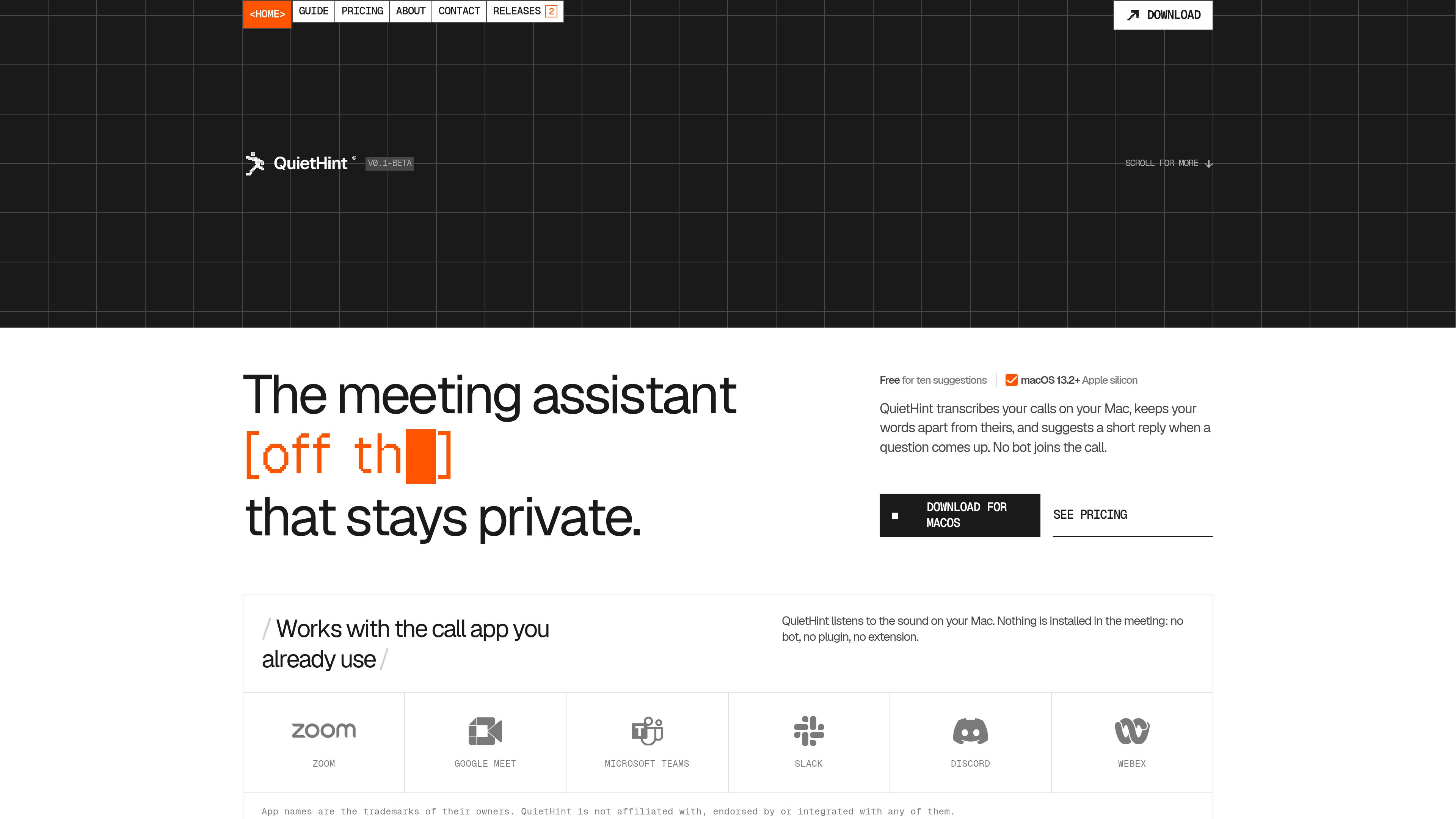
QuietHint is a meeting assistant for Apple silicon Macs running macOS 13.2 or later. It listens to microphone and call audio played through the Mac, turns speech into a local transcript, and separates the conversation into “You” and “Them” labels. Its main purpose is to help users keep track of a live conversation and respond to questions without adding a bot or plugin to the call.
When a question comes up, QuietHint can display a short sentence to say along with two or three supporting points. Suggestions can be generated automatically or requested with a keyboard shortcut. The app is designed as a floating window that stays above the call app without taking keyboard focus.
Speech is converted to text on the Mac using a local model. The site states that audio is held only while it is being transcribed, is not uploaded, and is not kept.
Microphone audio and call audio are treated as separate channels, allowing transcript lines to be labeled “You” or “Them.” Headphones are recommended for the cleanest split.
When a question is detected, the overlay can show a sentence that could be said aloud, followed by two or three concise points. Suggestions use recent transcript text and a screenshot of the active display.
Auto mode can watch for questions; users can turn it off and request a hint with ⌘↩. A separate shortcut can ask QuietHint to solve what is currently on screen.
With Screen enabled, QuietHint also watches the display and can answer a question shown on screen after the display settles. The screen switch remains available in the overlay.
The transcript and hints appear in a small window that does not take keyboard focus. Shortcuts can show or hide it, clear the transcript, toggle Auto or Screen mode, enable click-through, and quit the app.
When a prospect raises an objection, a user can receive a concise response structure and follow-up points without leaving the call window.
If a customer describes a technical problem, a hint can suggest a narrowing question or a next troubleshooting step based on the conversation and visible screen context.
During a practice session, QuietHint can help organize an answer into a short structure, such as the situation, the change made, and the result.
When a caller shares an error, dashboard, or other visible information, Screen mode can use the display alongside the transcript to formulate a response.
Users can run the assistant with supported call apps or browser-based calls because it listens to audio played through the Mac rather than connecting to the meeting service.
No. It runs as a Mac overlay and listens to audio on the computer. The site says that no bot, plugin, or extension is installed in the meeting app.
Transcription takes place on the Mac, and QuietHint says audio is not uploaded or kept. To generate a hint, recent transcript lines and a screenshot of the active display are sent to Anthropic directly from the Mac with the user’s key, or through QuietHint’s server when credits are used.
It can work with any app that plays call audio through the Mac. The site specifically names Zoom, Google Meet, Microsoft Teams, Slack, FaceTime, and browser tabs, while noting that QuietHint is not affiliated with or integrated into those services.
Download the macOS disk image, drag QuietHint to Applications, open it, and allow the requested microphone and screen-audio permissions. The first launch also requires an Anthropic API key or QuietHint credits for generating hints.
Yes. Auto mode can be turned off, after which a hint is generated only when the user presses ⌘↩. The overlay can also be hidden without stopping transcription.
Данные о трафике приведены только для справки.