MosMos logo

MosMos

Freemium
Visitar

MosMos is a voice-to-text desktop app that adapts spoken input to the current context and turns it into usable text. It supports in-app voice typing, custom keywords, and meeting transcription with summaries and to-do items.

O que é MosMos?

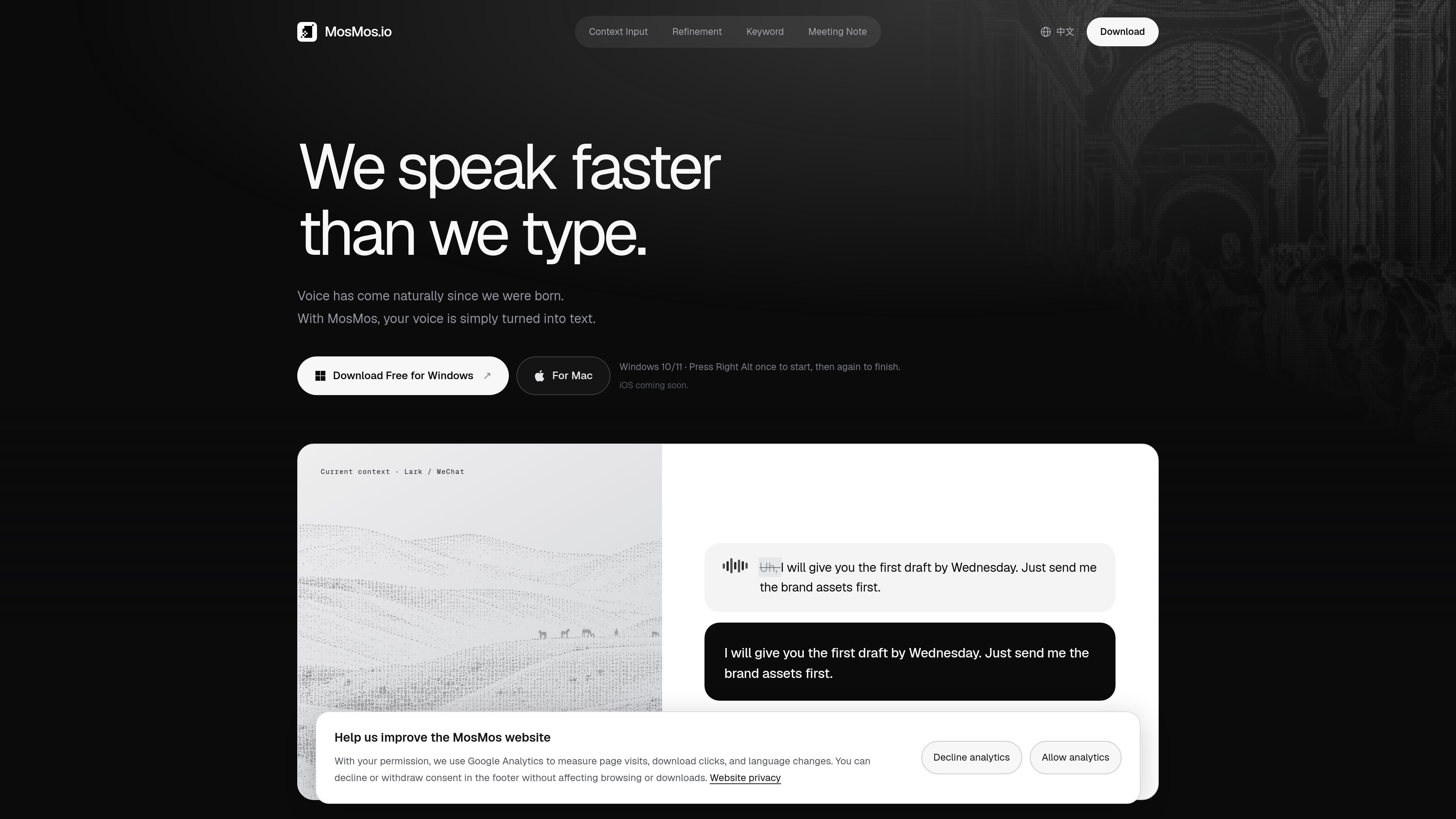
MosMos is a desktop voice-to-text app for macOS and Windows. It converts natural speech into text in the active input field, adapting the wording to the surrounding context so users can write in chats, emails, documents, prompts, code, and terminals without leaving the application they are using.

The product combines context-aware refinement with adjustable editing levels, custom keyword recognition, and a meeting mode. Meeting recordings can be transcribed with speaker identification, then organized into a summary and actionable to-do items. MosMos is intended for users who want to speak ideas directly instead of composing every sentence by keyboard.

O que MosMos pode fazer?

Context-aware voice typing

Press a keyboard shortcut while a text field is active, speak naturally, and have MosMos refine and paste the result into the current app. The site shows examples for Lark, WeChat, email, documents, prompts, and code or terminal work.

Three refinement levels

Choose Basic to output the spoken words without changes, Standard to improve grammar and sentence flow, or Advanced to rewrite the input as a concise draft.

Custom keyword vocabulary

Add English proper nouns, homophones, and names to a personal vocabulary so they are recognized preferentially and preserved during refinement.

Multi-speaker transcription

Meeting mode continuously records and transcribes a discussion while identifying different speakers and retaining the full transcript.

Meeting summaries and to-do items

After a meeting, MosMos organizes the context and key takeaways and extracts action items, including assignees and due dates when they are present in the conversation.

Keyboard-driven workflows

Mac users start and stop voice typing with Fn and start meeting recording with Fn + Shift. Windows users use Right Alt for voice typing and Alt + M for meeting recording.

Casos de uso

“Drafting messages and email”

Speak a response in a chat or email field without first dictating punctuation or mentally rewriting the message into formal prose. Select the refinement level that matches the desired amount of editing.

“Writing documents and prompts”

Use the active text field in a document or prompt interface to turn spoken ideas into readable text, while switching the context or style when a different form of writing is needed.

“Technical input”

Dictate text into code and terminal workflows without leaving the current developer tool. Custom keywords can help with technical names and other terms that are easy to misrecognize.

“Meeting capture”

Record a multi-person discussion, retain a speaker-separated transcript, and review the resulting summary and action items after the meeting rather than taking notes manually.

Perguntas frequentes

Which platforms does MosMos support?

The site lists macOS 15 or later on Apple silicon and Windows 10/11 64-bit. An iOS version is described as coming soon.

How do I start voice typing?

On Mac, press Fn once to start and again to finish. On Windows, press Right Alt once to start and again to finish. MosMos then applies the selected context and refinement settings and pastes the text into the active field.

How is meeting recording started?

On Mac, use Fn + Shift. On Windows, use Alt + M. The meeting mode continuously transcribes, identifies speakers, and generates a summary and to-do items when the meeting ends.

Can MosMos preserve my wording instead of rewriting it?

Yes. The Basic refinement level outputs the spoken text without changes. Standard improves grammar and flow, while Advanced rewrites it as a concise draft.

Is MosMos free?

The website provides free download links for Mac and Windows. The supplied pricing page is unavailable and does not establish whether there are paid plans, usage limits, or additional tiers.

Informações rápidas

Product type
Voice-to-text and meeting transcription app
Platforms
macOS 15+ on Apple silicon; Windows 10/11 64-bit
Voice typing shortcuts
Fn on Mac; Right Alt on Windows
Meeting shortcuts
Fn + Shift on Mac; Alt + M on Windows
Displayed contexts
Lark, WeChat, email, documents, prompts, code and terminal
iOS availability
Coming soon, according to the website

Análise de tráfego de MosMos

Os dados de tráfego são apenas para referência.

Classificação do domínio
11

Alternativas ao MosMos

Genspark SecondBrain Note logo

Genspark SecondBrain Note

shop.genspark.ai

Genspark SecondBrain Note is a card-sized AI voice recorder for capturing meetings, calls, consultations, and other conversations. It records offline, transfers audio through the Genspark App, and turns recordings into transcripts, summaries, key points, and action items.

VoiceCap logo
VoiceCap

voicecap.ai

VoiceCap is an AI meeting notetaker for in-person and online meetings. It records or imports meetings, produces speaker-separated transcripts, summaries, decisions, and action items, and makes the resulting archive searchable for teams and connected AI assistants.

Noty.ai logo

Noty.ai

noty.ai

An AI meeting assistant for teams that turns conversations into transcripts, summaries, and trackable tasks.

Jottoo logo

Jottoo

jottoo.com

Jottoo is a browser-based meeting notes workspace that records or imports audio, transcribes conversations, creates structured summaries, and turns follow-ups into tasks. It is designed for people who want meeting documentation and action tracking without adding a meeting bot.

Rimo logo

Rimo

rimo.app

AI transcription and meeting notes for individuals and teams working in 60+ languages.

Jamie logo

Jamie

www.meetjamie.ai

AI meeting intelligence for professionals and teams that turns conversations into searchable notes and follow-up workflows.