
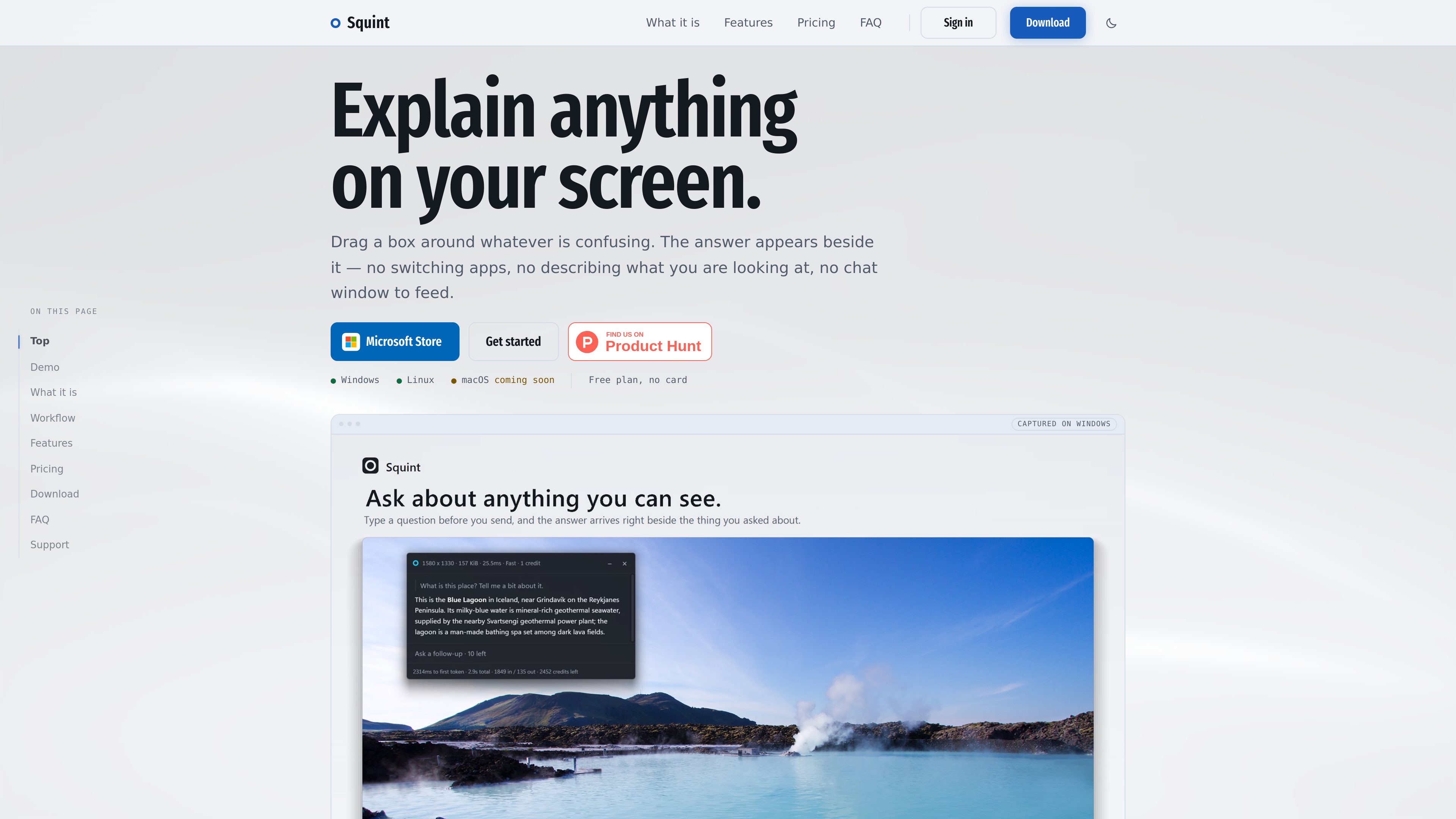
Hotkey screen capture
Press Win + Shift + Q by default, then drag over any visible area to start an explanation. The shortcut can be rebound if it conflicts with another command.

Squint is a desktop app that explains selected content on your screen using an inline AI response. It helps people get context, interpret visual information, and ask follow-up questions without switching away from their current work.
Squint is a desktop screen-understanding app for Windows and Linux, with macOS marked as coming soon. Press the hotkey, drag around the part of the screen you want explained, and read the response beside the selection. The workflow does not require opening a separate chat window, uploading a file, or manually describing what is visible.
The app remains in the system tray until activated. Its default shortcut is Win + Shift + Q, and the shortcut can be changed. Responses stream into an adjacent panel, where users can ask follow-up questions without taking another screenshot. Squint supports Markdown, mathematical expressions, and code blocks, and the panel adjusts its size to the response.
For more involved captures, users can select up to four regions by holding Shift while dragging additional areas. Each capture can use one of two models: Fast or Best. Captures and conversations are stored locally in searchable chat history, and the archive can be turned off. The free plan includes three captures per day and ten per week, while the Plus plan provides 2,500 monthly credits and access to all models; usage limits and credit costs are defined by the selected model.
Squint requires a network connection because answers are generated by a model through OpenAI's API. The interaction before the answer—hotkey activation, screen freezing, selection, and cropping—takes place locally. The service states that only the selected region is sent for processing, and that the captured region is removed from Squint's side after the answer returns. Windows 10 or 11 and Linux with Wayland are supported today; the listed Linux environments are GNOME 45+ and KDE Plasma 6, while macOS support is not yet available.
Press Win + Shift + Q by default, then drag over any visible area to start an explanation. The shortcut can be rebound if it conflicts with another command.
The response appears beside the selected region and streams into the screen. A follow-up can be asked in the same panel without taking another screenshot or re-explaining the context.
Choose between two models for each capture, or set a default in the app. Fast is available on the free plan; Best is intended for more difficult material such as dense fine print.
Hold Shift to add more areas to a capture, with up to four regions supported at once. This allows related parts of a screen to be considered together.
The answer panel supports Markdown, mathematical expressions, and code blocks, and changes size based on response length.
Closed conversations are stored locally, searchable, and available for continuation. Users can disable the archive if they do not want chats retained on the computer.
Select a website, application interface, diagram, or other confusing area to get an explanation without leaving the current task or writing a separate description.
Capture fine print or other difficult-to-read material and use the Best model when exact interpretation requires more capability than a quick lookup.
Select code or a technical interface and receive an answer formatted with code blocks, then ask follow-up questions in the same capture panel.
Select multiple related regions—up to four at once—to ask about separate controls, options, or areas that need to be considered together.
Search locally stored chat history to continue a previous screen-based conversation rather than capturing and explaining the same context again.
No. It stays inactive in the system tray until the hotkey is pressed or Squint Capture is clicked. The site says there is no recording, polling, or background capture between activations.
The selected region is sent to OpenAI's API to generate the answer; the rest of the screen remains on the user's machine. Squint says the region is removed from its side after the response returns. OpenAI retains API data in abuse-monitoring logs for up to 30 days and does not use API submissions for training, according to the product's stated data explanation.
No. The answer is generated by a model over the network. The hotkey, screen freeze, selection, and crop occur locally before the selected region is sent.
Windows 10 or 11 on 64-bit systems and Linux through Wayland are listed as available. Linux support specifies GNOME 45+ or KDE Plasma 6. macOS is marked as not yet available. The app states that multiple monitors, 4K displays, and portrait-oriented monitors are supported.
The free plan requires no card and includes three captures per day, resetting at midnight UTC, and ten captures per week, resetting Monday at midnight UTC. It uses the Fast model and allows up to two follow-up questions per capture; the listed features, including multiple regions, local archive, and themes, are included.

suppixel.ai
Web-based image enhancement and upscaling for sharper, clearer visuals

aiwatermarkremover.io
AI Watermark Remover removes watermarks from photos and videos online.
www.leadjarvis.com
LeadJarvis is an AI-powered event lead capture tool that scans business cards, enriches contact data, and sends personalized follow-ups via WhatsApp and email for faster handoff and CRM-ready records.

clarasdr.ai
Clara is a face-to-face video AI SDR that engages website visitors in real time, qualifies leads, and books meetings. It helps teams turn inbound traffic into pipeline without adding sales headcount.

faceiqlabs.com
Web-based facial analysis with 100+ metrics and personalized progress tracking

workos.com
Atlas is an AI coworker that works in Slack to answer questions, carry out follow-up tasks, and support shared team workflows. It can use Slack context and connected tools to help with research, coordination, and routine work.