
Approve prompts from the notch
Permission requests appear as cards at the top of the screen, letting you allow or deny an agent without typing in the terminal. The response is sent back through the local hook path the agent is already using.

Crew Tower는 메뉴 막대 노치에서 AI 코딩 에이전트를 승인하고 추적할 수 있는 macOS 유틸리티입니다. 터미널로 전환하지 않고 권한, 답변, 진행 상황, 컨텍스트를 확인하세요.
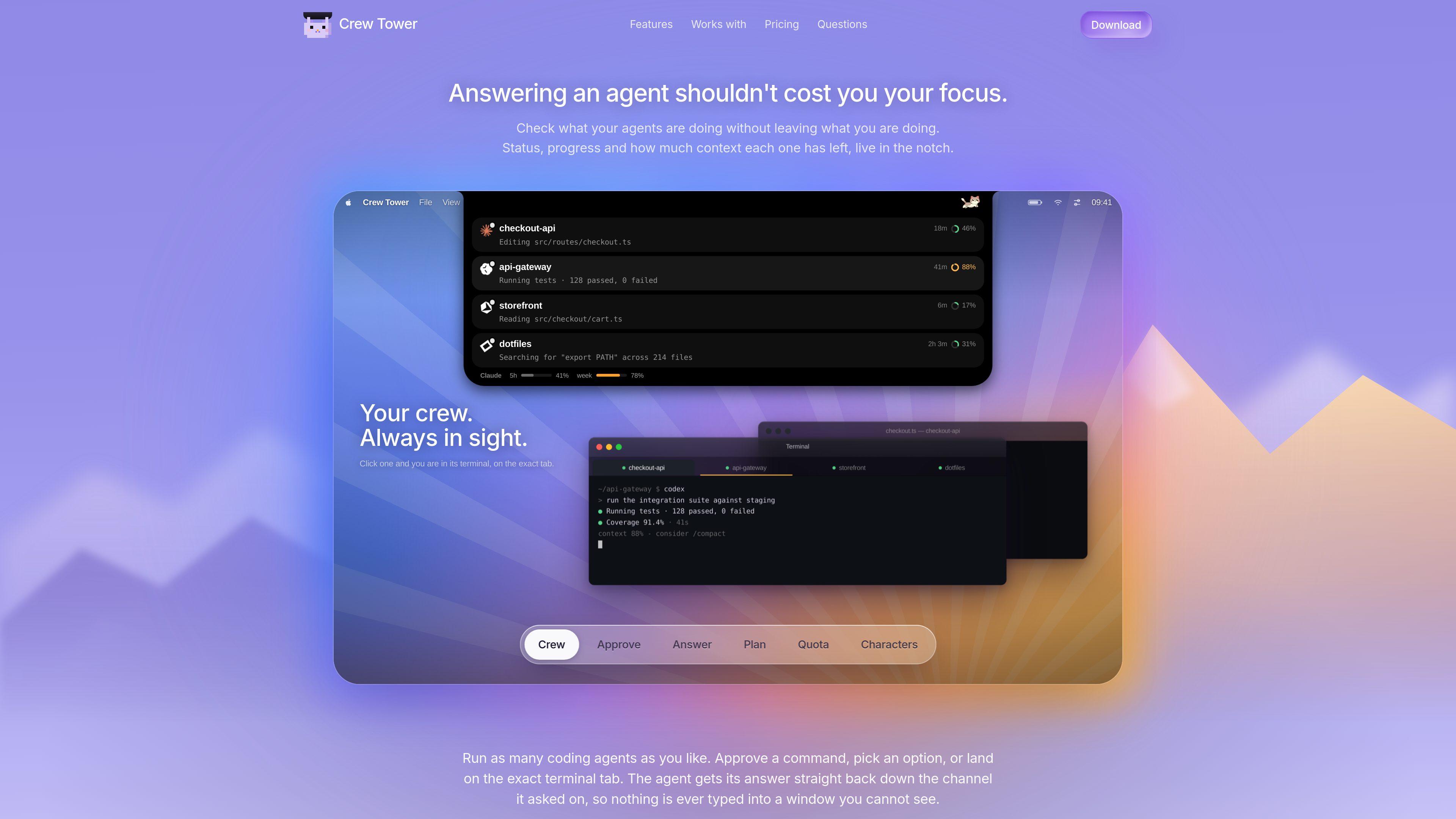
Crew Tower is a macOS app for watching, approving, and answering AI coding agents from the menu bar notch. It keeps session status, permission prompts, and context signals visible so developers can stay in their current workflow instead of checking the terminal for updates.
Its core job is to make agent interaction less interruptive. The app surfaces what an agent is asking for, where it is running, and how much context it has left, then lets you approve, deny, answer a question, or jump to the exact terminal tab tied to that session.
Permission requests appear as cards at the top of the screen, letting you allow or deny an agent without typing in the terminal. The response is sent back through the local hook path the agent is already using.
Cards can include the shell command, file edit, write target, plan, or question the agent submitted. Destructive shell commands are highlighted before approval so the risk is visible first.
The app offers allow once, allow for this session, and always allow. According to the site, session-level approval does not write to disk, while durable approval stores a rule in the project’s settings.
When an agent asks you to choose between options, Crew Tower renders the options as buttons and sends the selected answer back in the format the agent expects.
Clicking a session brings the matching terminal tab forward rather than just opening the terminal app. This is meant to help when several sessions share a project or multiple agents are active at once.
Each session shows its running state, waiting state, or finish state, along with context usage. The site says usage rings change color as context fills up, helping you spot sessions that are close to running out.
When an agent proposes a destructive command such as removing build output, Crew Tower surfaces the command on a card before you approve it. That lets you inspect the request and decide from the notch instead of context-switching into the terminal.
If an agent asks which queue to use, whether to create a new branch of work, or how to proceed, Crew Tower presents the options as buttons. You can answer immediately and keep working in the app you already have open.
For developers running more than one agent, the app shows which sessions are active, what each one is doing, and how long it has been waiting. That is useful when several sessions share a folder or when one session has gone quiet.
The app shows progress, waiting state, and remaining context so you can spot sessions that may need attention soon. That is helpful for long-running work such as tests, edits, or planning runs that can finish silently.
When a session is tied to a specific terminal tab, clicking it can bring that tab forward. This helps when you want to review or continue a run without searching through several open terminals.
The homepage and changelog mention Claude Code, Codex, Cursor, Gemini CLI, Qwen Code, and opencode. The changelog also says other agent CLIs are detected while they run.
No. The product is built to let you approve, deny, or answer prompts from the notch, with the decision sent back to the agent through its local hook.
No. It also shows session status, progress, waiting state, context usage, and agent questions that can be answered as button choices.
No confirmed pricing table or plan structure is available from the site pages provided. The home page mentions early bird pricing, but the pricing page itself returns a not found message.
The privacy page says your code, prompts, and agent transcripts never leave your Mac, and that the app does not use analytics, crash reporting, accounts, advertising, or tracking.
트래픽 데이터는 참고용으로만 확인하세요.